
Facebook Lead Ads Not Showing in Your CRM? Trace One Missing Lead
Trace a missing Facebook instant-form lead through Meta, your integration and your CRM. Check permissions, mappings, duplicate records and recovery.

If a Facebook lead exists in Meta but does not appear in your CRM, trace that submission through three places: the instant form, the integration’s run history, and the CRM record. Confirm the exact Page and form, check access, then repair the first failed handoff.
A campaign total and an empty pipeline cannot tell you where delivery stopped. One lead ID, a timestamp, and the receiving system’s response give you a much clearer starting point.
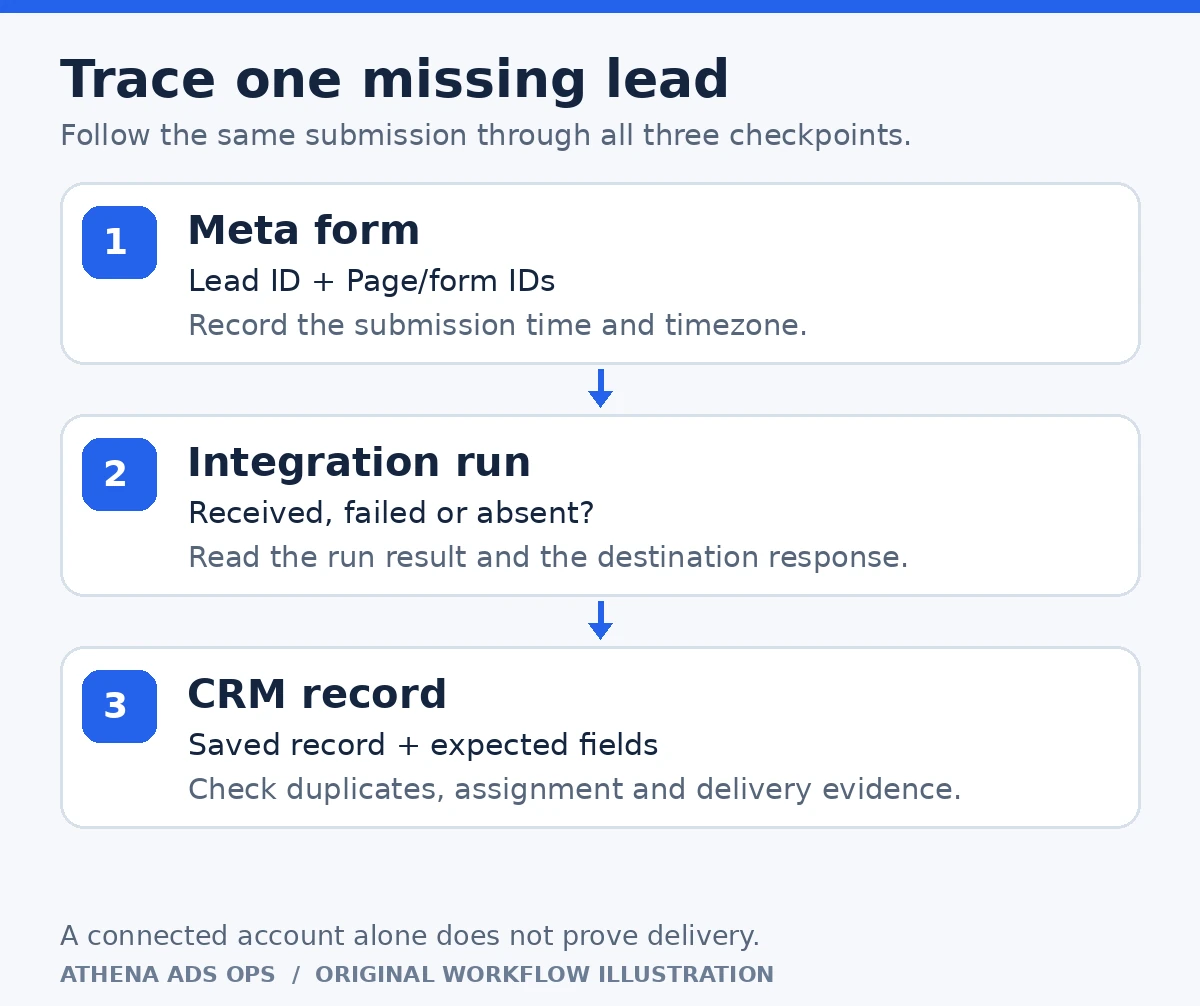
Original diagnostic diagram: verify the same submission at each checkpoint.
1. Confirm the submission exists in the correct form
Open the instant form attached to the affected ad and locate the submission or export the relevant date range. Record the Page ID, form ID, Meta lead ID, submission time, and timezone. Keep personal details inside your authorized systems.
Check the conversion location too. This workflow covers Meta instant forms. A website form needs a separate investigation of its submission endpoint and CRM connection; website pixel troubleshooting addresses another part of that setup.
If you cannot find the submission, verify the form and your access before declaring it lost. Save the last successfully delivered lead and the first missing one to bracket the problem.
2. Search the CRM beyond the pipeline view
Search the underlying contact or lead database using the identifiers available to you. Inspect existing records, recent activity, and applied filters. A repeat submission may be associated with someone already in the CRM.
An attribution dashboard can also omit a delivered submission. HubSpot’s troubleshooting guide explains that its First ad interaction report excludes some people who became contacts before submitting the lead ad form.
Record the outcome precisely: missing record, existing contact updated, submission received but unassigned, or hidden by the current view. Each needs a different fix.
3. Match the integration to the current Page and form
Inspect the integration’s selected Page, form, destination account, and enabled status. Compare IDs, not just similar names. Pay particular attention to duplicated or replaced forms.
Zapier documents stale form selection as one reason a Facebook Lead Ads workflow stops triggering. Its guidance also distinguishes a successful setup test from a functioning live workflow.
Find the submission’s timestamp in the connector history. No run suggests a trigger, selection, or access issue. A failed run provides a more specific lead: read its error before changing anything. A successful run needs a destination record ID to substantiate delivery.
4. Verify access and the connection behind it
Check access for both the Facebook user who connected the integration and the CRM app. In the relevant business settings, inspect Integrations → Leads access for the correct Page. Follow your connector’s requirements; the available screens and permission labels can vary.
HubSpot’s guide separates Page access, the connecting user’s leads access, and integration permissions. Zapier likewise distinguishes CRM access from ordinary Page/admin access.
If the run history identifies expired authorization, reconnect the affected integration using the intended account. Then confirm the same Page and forms remain selected. Preserve the error and configuration first so you can verify what changed.
For a custom webhook, ask its maintainer to check the app’s leadgen subscription and its subscription to the Page. These are separate checks in Meta’s engineering checklist.
5. Inspect the destination’s response and field mapping
If the connector received the lead, inspect the CRM create/update response. Compare the incoming fields with the mapped destination fields. Look for a missing required value, an unsupported format, a read-only property, or a duplicate match.
LeadSquared’s connector documentation lists mapping and missing-identifier failures separately from duplicate email/phone outcomes. Those labels describe LeadSquared; other CRMs may update, reject, or merge records differently.
Fix the specific mapping or rule supported by the error. Do not assume a new mapping repairs older records. For example, HubSpot’s mapping documentation says custom-mapping changes apply to newly synced leads.
If delivery works but the submissions are poor prospects, use the separate Facebook lead quality checklist.
6. Verify one fresh test from form to saved record
Open Meta’s Lead Ads Testing Tool, select the exact Page and form, and use Preview Form to enter recognizable, owner-controlled test details. Follow your connector’s test instructions and make sure the test will not trigger unintended customer messages.
Meta’s engineering checklist specifies one test lead per form; remove the existing test before creating another when required. Keep the test’s lead ID and timestamp.
Follow that submission through the connector and into the CRM. Confirm the saved fields and intended assignment. A webhook receipt proves one handoff; the destination record proves the next. Save both pieces of evidence and exclude the test from lead reporting.
Repeat this check for another affected form if its configuration differs. Passing one form does not establish that every form works.
7. Reconcile and recover the historical gap
A successful new test shows that the tested route worked at that time. Check the next genuine submission too; historical recovery remains a separate task.
Export the affected period or use your provider’s supported backfill. Compare Meta lead IDs against received submissions and existing CRM records before importing. Preview the duplicate/update behavior and check whether replaying records will trigger follow-up automations.
HubSpot, for example, distinguishes New leads from All leads in its sync settings. Other connectors have their own recovery options; verify the supported timeframe and process.
Illustrative example — fictional reconciliation, not customer results:
| Meta lead | Integration evidence | CRM evidence | Next action |
|---|---|---|---|
| LEAD-A | Successful run | New contact found | Mark delivered |
| LEAD-B | Duplicate match | Existing contact found | Verify submission activity |
| LEAD-C | Required-field error | No saved record | Fix mapping; recover once |
| LEAD-D | No matching run | No saved record | Check trigger and access |
For ongoing checks, include this reconciliation in your Meta ads reporting workflow.
Ask AI to organize the evidence
Use redacted identifiers and error messages. Never paste access tokens, passwords, or a customer list into the prompt.
Help diagnose a Meta instant-form submission missing from my CRM.

Evidence:
- Page/form aliases: [PAGE-A / FORM-A]
- Lead alias and submission time/timezone: [LEAD-A / timestamp]
- Submission verified in Meta: [evidence or unknown]
- Connector and selected destination: [details]
- Matching run and redacted error: [details or unknown]
- CRM record search and duplicate result: [details or unknown]
- Last successful delivery: [timestamp or unknown]

Identify the first unsupported handoff. Separate confirmed facts,
hypotheses, and missing evidence. Give the next three checks,
the evidence needed to confirm a fix, and a separate recovery plan.
Do not assume connected status proves delivery. Recommend changes
only when the evidence supports them; do not execute changes.
Frequently asked questions
Why does a test work while live leads are missing?
The sample may have been retrieved during setup while the live trigger lacks access, is disabled, or points to another form. Check a recent live submission’s actual run history as well as the test.
Will reconnecting recover every missing lead?
Do not assume it will. Verify the connector’s historical-sync options and reconcile the missing period separately. Confirm each recovered record before marking the gap closed.
Does a successful integration run prove the salesperson received the lead?
Only if you also verify the saved record and intended assignment or notification. Delivery, assignment, and follow-up are separate checkpoints.
Turn the checks into a repeatable review
The Athena Ads Ops toolkit includes account-health and reporting workflows that help organize evidence, surface gaps, and prepare operator-reviewed next steps. Use them with the access and data you provide. The toolkit does not repair CRM integrations by itself.