How to Create Facebook Ad Images with ChatGPT: A Website-to-Ad Walkthrough
Create a Facebook ad image with ChatGPT using verified offer details and real brand assets. Review, correct and export the draft before placement testing.
You can use ChatGPT to create Facebook ad images, but a useful production workflow needs more than a website link and “make me an ad.” Give it verified offer details, the real brand assets and one visual direction. Then inspect the generated file, correct specific defects and preview it in the placement you intend to use.
The goal is a usable ad draft you can review and test. A polished image is not evidence that an ad will convert.
This walkthrough starts after you have chosen the message. If that is still unclear, complete the Meta ads creative brief first.
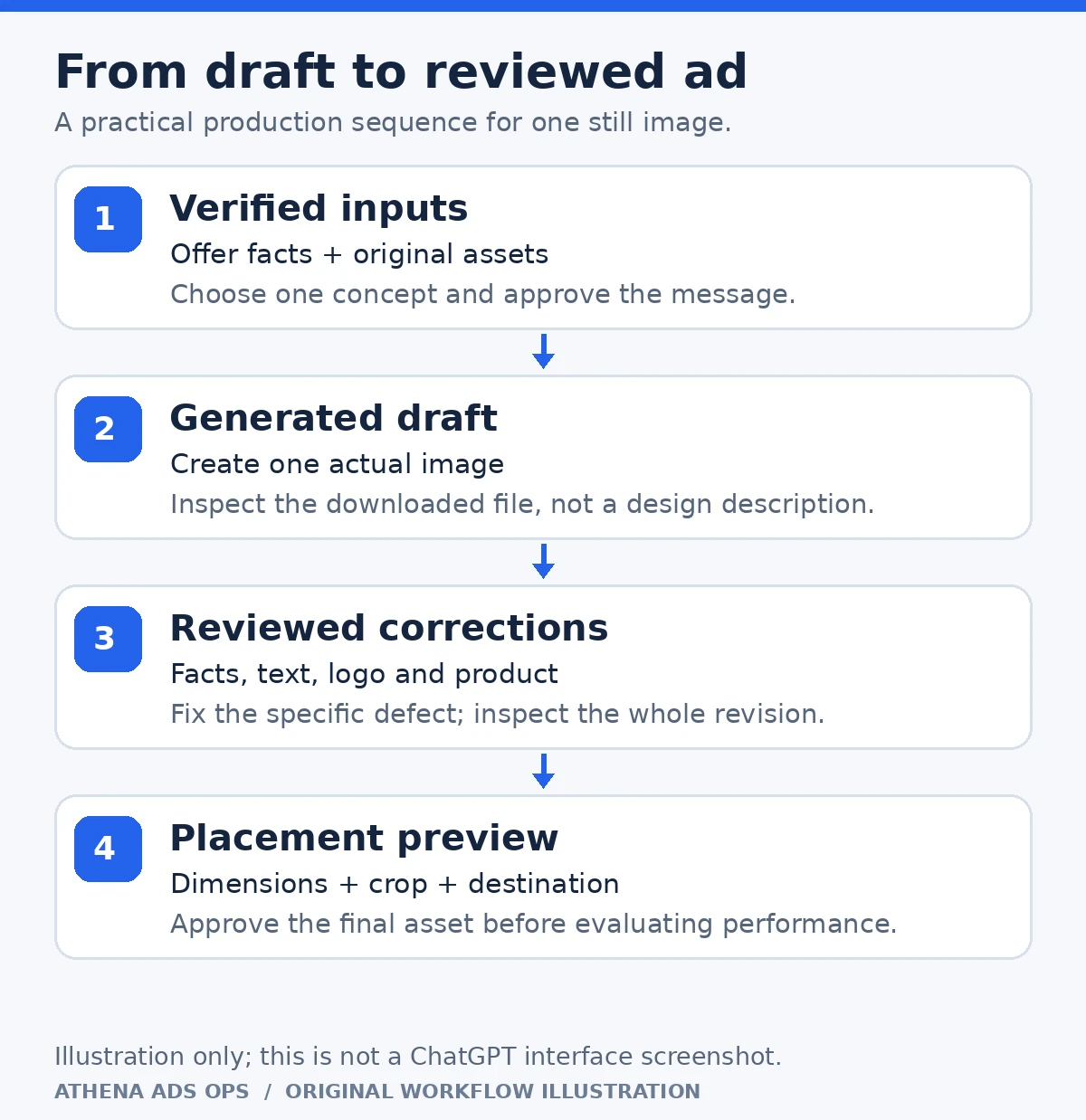
Original production workflow illustration, not a ChatGPT screenshot.
1. Turn the website into a short, verified fact sheet
Start with the product or offer page. Record what the customer actually receives, who it is for, the current price if you intend to show it, and the action the ad should invite.
A URL is a source to inspect, not proof that your AI has read it. If the page cannot be opened in your session, paste the relevant copy and upload the approved assets. Ask the assistant to identify missing information before generating the image.
Use this compact fact sheet:
- Offer: the product and the exact deliverable.
- Audience: one situation the product helps with.
- Supported benefit: something the product demonstrably does.
- Visual evidence: a real product photo, approved screenshot or other supplied asset.
- Brand assets: original logo, colours and any required type treatment.
- Ad copy: one approved headline and a matching call to action.
Keep guesses out of the sheet. A template that helps someone organize tasks does not automatically “save ten hours a week.”
2. Choose one concept and make its focal point obvious
Do not ask for a product screenshot, three benefits, a testimonial, a sale badge and a busy scene in the same first draft. Choose the single thing the viewer should notice.
For a downloadable template, that might be the actual layout. For a physical product, it might be a useful detail shown clearly. For a service offer, it might be a visual explanation of the process rather than a fabricated result.
Illustrative example: Day Grid is a fictional downloadable weekly planner. The approved concept is “See this week on one page.” Its ad will show a supplied planner preview, a short headline and the CTA “View the planner.” There is no customer testimonial or performance claim.
If you need a direction, use the creative-patterns guide to study composition and messaging, then develop an original concept for your own offer.
3. Generate one image draft
OpenAI’s image guide explains how to create images from a description and edit uploaded images. Work in a session with image generation available; a text-only answer describing a design is not the image file.
Upload your assets and adapt this production prompt:
Create one actual still-image ad draft using the attached assets.

Offer: [verified product and deliverable]
Audience situation: [one specific situation]
Concept: [one chosen visual direction]
Approved headline: [exact wording]
CTA: [exact wording]
Brand colours: [values]
Working aspect ratio: [ratio for the intended placement]

Make the product or main visual the focal point. Keep the headline
readable at phone size. Leave clear space around important content.

Use the supplied product image and logo accurately. Do not invent
product features, reviews, ratings, discounts or customer results.
If you cannot preserve an asset precisely, explain that limitation
and provide a background/layout that can use the original asset
in a final composition step.

Produce one draft for review. Do not publish it or change an ad account.
One draft gives you something concrete to judge. Generate more variations after you know which message and visual you want to preserve.
4. Review the file against the inputs
Open the actual image. Check it at full size for defects, then at roughly the size someone would see on a phone.
Review in this order:
- Offer accuracy: does every visible statement match the product page?
- Product accuracy: has the AI changed a feature, screen, package or item?
- Text: is every word spelled correctly, including small labels?
- Brand: is the logo accurate and the treatment recognizable?
- Readability: can you identify the message without zooming?
- Composition: are important elements clear of awkward edges and crops?
Illustrative example: the Day Grid review could look like this. These are hypothetical defects, not results from a live campaign.
| Check | Draft observation | Required action |
|---|---|---|
| Headline | Approved wording is intact | Keep it |
| Planner preview | An unsupported reminder button appeared | Restore the original screenshot |
| Logo | Letter spacing changed | Use the supplied logo asset |
| CTA | Too small at phone size | Increase its size and contrast |
An attractive background does not compensate for an inaccurate product. Fix the specific defect before multiplying the design into other formats.
5. Request a targeted revision
Describe what should change and what should remain. OpenAI notes that image edits can affect areas beyond a selection, so inspect the whole revised file, including elements you asked it to keep.
Revise this draft with these changes only:
1. Replace the altered product preview with the supplied original.
2. Increase the CTA's readability at phone size.

Keep the approved headline, visual concept and colour palette.
Do not introduce new features, badges or claims.
Return the revised image, then identify any remaining uncertainty
about asset fidelity or text accuracy.
If exact branding or small product-interface text still drifts, finish that part in a design editor using the original asset. Record that composition step accurately; the finished image may include both generated elements and manual layout work.
6. Export and inspect the intended placement
Save the image and check its actual dimensions, aspect ratio and file type. Asking for a particular size is not a substitute for checking the downloaded file.
As a working example, a 1080 × 1350 canvas has a 4:5 ratio. That is not a universal specification for every Meta placement. Check the current requirements for your selected placement in Meta’s Ads Guide and inspect the placement preview before launch.
If you need another shape, adapt the composition. Do not assume a crop will preserve the headline, product and CTA. Inspect each exported version independently.
Name the file so you can find it later, for example:
day-grid_week-on-one-page_4x5_v02.png
Keep the source assets, final export and approved copy together. The next person reviewing the ad should be able to tell which version is current.
7. Keep production approval separate from performance
Before using the image, confirm that its promise matches the destination page and that the CTA leads to the intended offer. Have the person responsible for the account approve the final creative.
Once an ad runs, evaluate it against its actual objective. A readable image, a high click-through rate and a paid order answer different questions. Record the asset version and what you changed so the next creative decision is based on identifiable evidence.
Frequently asked questions
Can I use only a website URL?
Use it as a starting point, then confirm the extracted facts. Supply inaccessible text and original brand assets yourself. Do not let missing inputs become invented product details.
Can ChatGPT preserve my logo perfectly?
Check the result against the original. When exact reproduction matters, use the original logo in the final composition rather than accepting a visually similar generated version.
Does one generated ad prove the concept works?
No. It gives you a creative to review and test. Commercial performance requires campaign and customer evidence.
Give the image tool a better starting point
The free AI Ad Creative Brief Builder helps you turn an offer into a concept, headline, copy and image-generation brief. The free resource does not itself deliver a finished image; use an image tool or designer for that step.
For a reusable workflow across creative production and other Meta ads tasks, see the Athena Meta Ads Agent Kit. Its Ad creative + copy builder provides the instructions; you supply the inputs, compatible tools and final review.