
Meta Ads Not Spending? A Checklist for Active Campaigns
Meta ads active but not spending? Check delivery status, schedules, billing, limits, and budget allocation with a practical checklist and AI prompt.

If your Meta ads are active but not spending, check the reporting window, delivery status at every level, schedule, billing and spending limits, then budget allocation and bidding settings. Start by identifying where delivery stops. Increasing the budget before you find that point can leave the original problem unresolved.
The first question is whether the whole account has stopped, one campaign has stopped, or one ad is receiving little spend while other ads continue. Those situations call for different investigations.
This guide gives you a practical order of checks, two fictional examples, and a copyable AI prompt for organizing the evidence. You can use the checklist directly in Ads Manager; no connector is required.
First, separate no delivery from no results
Spend, impressions, clicks, and purchases describe different stages. Check spend and impressions together before deciding what is broken.
| What you observe | What to investigate first |
|---|---|
| No spend and no impressions across the account | Reporting filters, account notices, billing, limits, and scheduling |
| One campaign has no spend; others are running | That campaign's settings and the delivery status of its ad sets and ads |
| One ad set has little spend inside a spending campaign | Budget allocation, its status, restrictions, and eligibility |
| Impressions and spend are increasing, but purchases are zero | Conversion measurement, the offer, and the post-click journey |
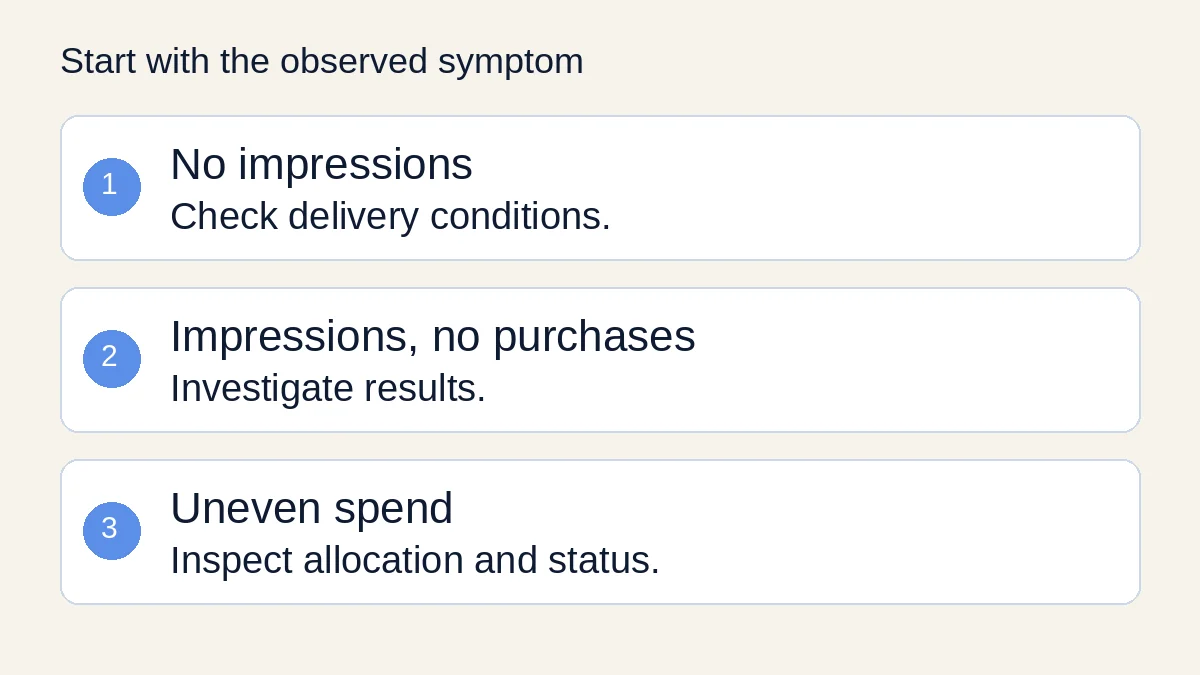
Different symptoms need different checks. Start with the observed delivery pattern before proposing a setting change.
The last row is a results problem. It needs a different investigation from an ad that has never entered delivery. For a structured way to interpret those numbers, use our weekly AI Meta Ads reporting workflow.
1. Confirm the account, dates, and reporting view
Before changing a live setting, capture a small evidence record:
- Ad account, currency, and account time zone.
- Campaign, ad set, and ad names or IDs.
- Date range and any filters applied to the report.
- Spend and impressions for that same window.
- When the item was published or last changed.
Check that you are viewing the intended account and period. Compare a complete previous day with the current partial day separately. A campaign that started after the selected reporting window cannot explain spend missing from that earlier window.
Refresh the view and note when you checked it. If an export and the interface disagree, record both timestamps and reconcile the difference before treating either number as final.
This evidence record also makes an AI-assisted review more useful. An export without its time zone or reporting window invites confident guesses about what happened.
2. Read delivery status at campaign, ad set, and ad level
Expand the affected campaign and inspect its ad sets and ads. Record the exact Delivery label and any explanation attached to it. The label at the campaign level is only part of the picture.
Meta's own Business SDK distinguishes configured status from effective status. That is a useful reminder: a switch being on and an item being able to serve are separate checks.
If an item is scheduled, paused, under review, rejected, or showing an issue, investigate that specific condition. Read the explanation in your current account rather than translating every warning into “the algorithm needs more budget.” Interface labels and available controls can vary.
For review or restriction notices, follow the account's explanation and available review process. Making another copy of the same ad does not establish that the underlying issue is resolved.
Meta maintains a delivery troubleshooting guide, which may require sign-in. Use it alongside the current notice in your account, particularly when a status is unfamiliar.
3. Check the start time, end time, and delivery schedule
Write down the scheduled start and end, including the account time zone. Compare them with the current time in that zone. Check any limited delivery hours that are actually configured.
A time-zone mismatch can look like a stalled launch when the intended start has not arrived. An expired end time can look like an unexplained stop when the campaign has simply reached its configured finish.
For example, if your launch record says “9 AM,” replace that shorthand with “9 AM Asia/Manila.” Keep the zone in the change log and in any instructions you give an AI assistant.
If the schedule is wrong, correct the specific mismatch. Changing creative, targeting, and bidding at the same time would make it harder to tell which change restored delivery.
4. Inspect billing, account notices, and spending controls
Check the account's current billing and payment notices, account restrictions, and spending controls. Distinguish the budget you intend to spend from a limit that may prevent further spending.
Meta's ad account SDK reference includes separate fields for account status, amount spent, spend cap, and time zone. These describe different account conditions; a campaign budget alone cannot answer all of them.
If the account shows a failed payment or a reached limit, follow the relevant account workflow. Keep payment details out of screenshots or exports sent to an AI tool. A redacted status message is usually enough to organize the next check.
If only one ad is affected, still inspect account notices, but avoid concluding that the whole account is blocked without evidence. Record what is affected and what continues to deliver.
5. Find where the budget is allocated
Determine whether the budget sits at campaign or ad set level. Then compare the affected item's spend with the total at the level controlling that budget.
Here is a fictional example for one complete reporting day:
| Item | Spend |
|---|---|
| Ad set A | $150 |
| Ad set B | $30 |
| Ad set C | $0 |
| Campaign total | $180 |
The campaign is spending. The unanswered question concerns ad set C: is it eligible but receiving little allocation, or does it have a separate delivery problem? Its zero spend alone does not prove that the campaign is broken or that C is a poor creative test.
Compare its status and controls before creating a replacement campaign. If your actual goal is a controlled comparison, define a separate testing plan; ordinary delivery data is not automatically a balanced experiment.
6. Review bidding constraints, audience, placements, and event
Once the earlier checks are clear, record the bid strategy and any bid cap, cost goal, or return goal in use. Check targeting restrictions, placements, and the selected optimization event. Meta's ad set reference documents these as separate settings.
Treat them as hypotheses to investigate, not a list of switches to change together. For example: “A restrictive bidding goal may be limiting opportunities” is a hypothesis. “The bidding goal caused the stall” needs evidence.
Before relaxing a control, define what you are willing to spend and what result would justify keeping the change. Removing a cap can change your exposure to cost. More spend is useful only if the business can accept the resulting economics.
If the selected event appears unavailable or incorrectly configured, investigate the event setup. Zero purchases in a short report does not, by itself, prove that tracking is broken. Likewise, a tracking concern does not automatically explain zero impressions.
Avoid universal rules such as “always double the budget” or “all campaigns must exit learning in a fixed number of days.” The right action depends on the observed condition and business constraints.
A worked example: a scheduled launch mistaken for a delivery failure
Consider this fictional review:
- The analyst checks at 08:30 in the ad account's time zone.
- The campaign switch is on, spend is $0, and impressions are zero.
- The intended launch was today, but the ad set's recorded start is tomorrow at 09:00.
- No billing notice appears in the captured review.
The schedule mismatch is confirmed. The next action is to verify the intended launch with the owner and correct that start time if appropriate. There is no evidence here that a new audience, larger budget, or replacement creative would solve the immediate problem.
After the change, record the new start time, delivery status, and subsequent spend and impressions. Delivery restarting would verify that the ad can serve; it would not yet prove that the campaign is profitable.
Copy this AI prompt to organize a no-spend investigation
Use anonymized evidence. If you want help preparing the file first, follow our beginner's guide to Claude for Meta Ads.
Help me investigate Meta ads that are not spending.
Work only from the evidence below. Treat missing fields as unknown.

Account currency and time zone: [fill in]
Checked at, including time zone: [fill in]
Reporting window and filters: [fill in]
Affected campaign/ad set/ad: [fill in]
Spend and impressions at each available level: [fill in]
Exact delivery labels and explanations: [fill in]
Start/end times and configured delivery hours: [fill in]
Budget level, amount, bid strategy and constraints: [fill in]
Billing/restriction/limit notices, redacted: [fill in]
Recent changes and their timestamps: [fill in]

Return:
1. Confirmed observations, quoting the supplied evidence.
2. Missing information that prevents a diagnosis.
3. The next checks, in order, with a reason for each.
4. One proposed change only if evidence supports it.
5. How to verify that change and when to review it.
6. A short factual update I can send to the account owner.

Separate observations from hypotheses. Do not invent a root cause,
access the account, change settings, or assume a fixed recovery time.
When to escalate instead of making more edits
Escalate when the account explanation requires review, a billing issue remains unresolved, or delivery stays inconsistent with the verified settings. Check Meta's business product status page for reported incidents, without assuming that a clear status page rules out an account-specific problem.
Prepare a support record with IDs, the reporting window and time zone, exact messages, redacted screenshots, recent changes, and the checks already completed. This is more actionable than “my ads are broken.”
Keep a change log with the original setting, new setting, reason, time, expected outcome, and review point. For your recurring review, separate delivery recovery from purchase performance and use the same reporting definitions each time.
Frequently asked questions
Why are my Facebook ads active but not spending?
Check the affected level and its current explanation. Reporting dates, schedules, account conditions, spending controls, and ad set settings are different possible branches of the investigation. An active switch alone does not identify the cause.
Should I increase my budget immediately?
First establish what is preventing or limiting delivery. A budget change will not correct a future start time or resolve an account notice. If a budget or bidding test is justified, define its cost boundary and review point before applying it.
Can AI fix the issue automatically?
An assistant can organize evidence and suggest checks. Live access and changes require working tools, permissions, and a configured workflow. A prompt or uploaded screenshot by itself does not give the assistant control of Ads Manager.
Make the next check easier to repeat
Save the evidence record and prompt so your next investigation starts with the account conditions rather than another guess.
For reusable instructions across your Meta ads work, see Athena's six AI agent automation prompts, available for $49 one-time at the time of writing. You run the files in your own AI environment; AI subscriptions, connected tools, and applicable tax are separate. Review any proposed live changes before applying them.
Prefer to try the approach first? Get the free AI creative brief prompt.